Youtube2Notion Documentation
Follow these 5 steps to automatically sync your YouTube liked videos and playlists to Notion in just a few minutes.
- 1
Install the Extension
Open the Chrome Web StoreClick the button below to open the Youtube2Notion page on the Chrome Web Store, then click "Add to Chrome" to install it in one click (on Edge, just click "Allow" in the prompt).
Once installed, the Youtube2Notion icon appears in your browser toolbar — click it to open the extension's side panel.
- 2
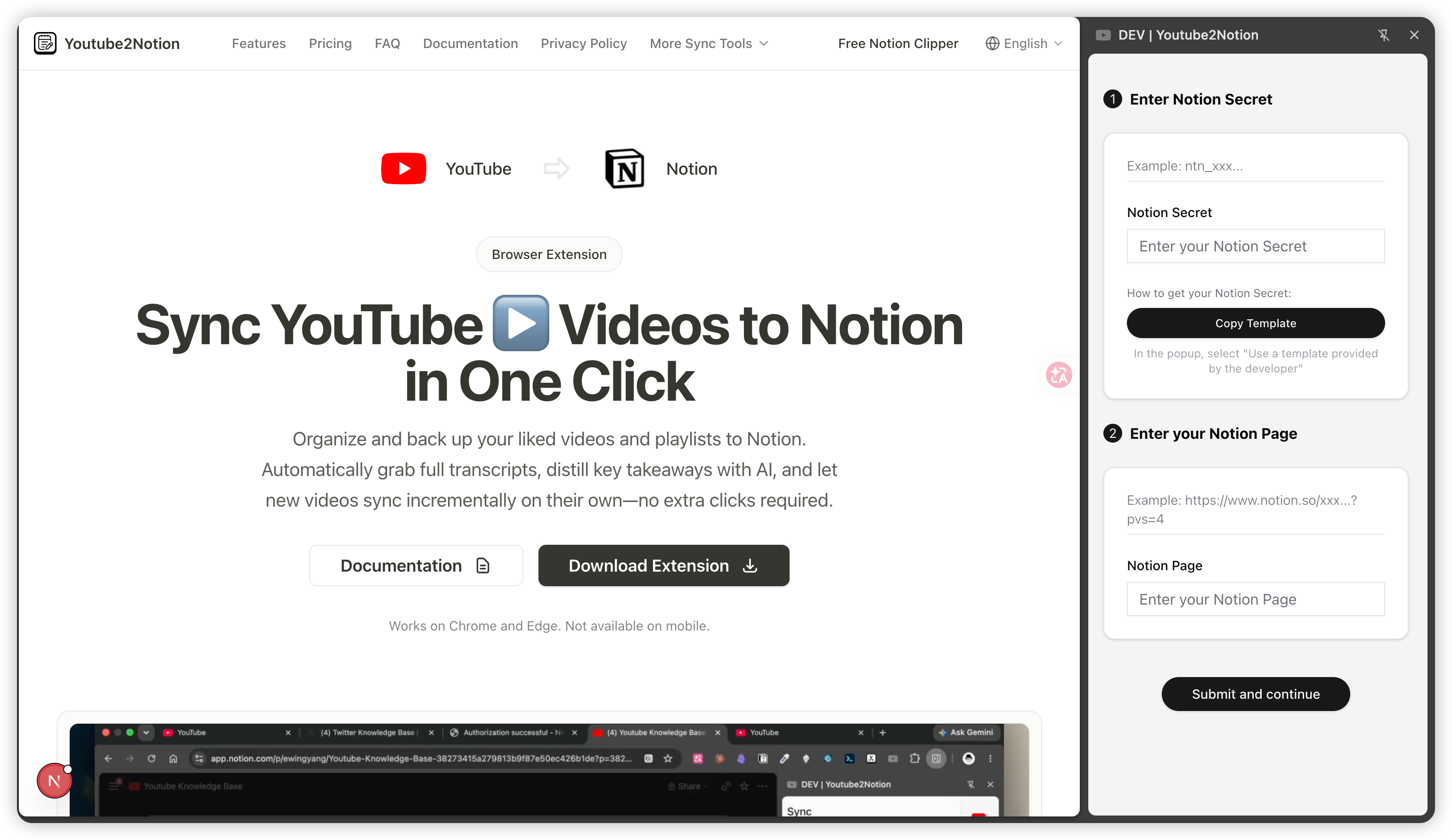
Open the Extension and Click "Copy Template"
Click the Youtube2Notion icon in your browser toolbar to open the side panel on the right.
In the "① Enter Notion Secret" section, click the "Copy Template" button. A Notion authorization window pops up — there's no need to create an Integration manually; the extension handles the authorization and fills in the values for you.
- 3
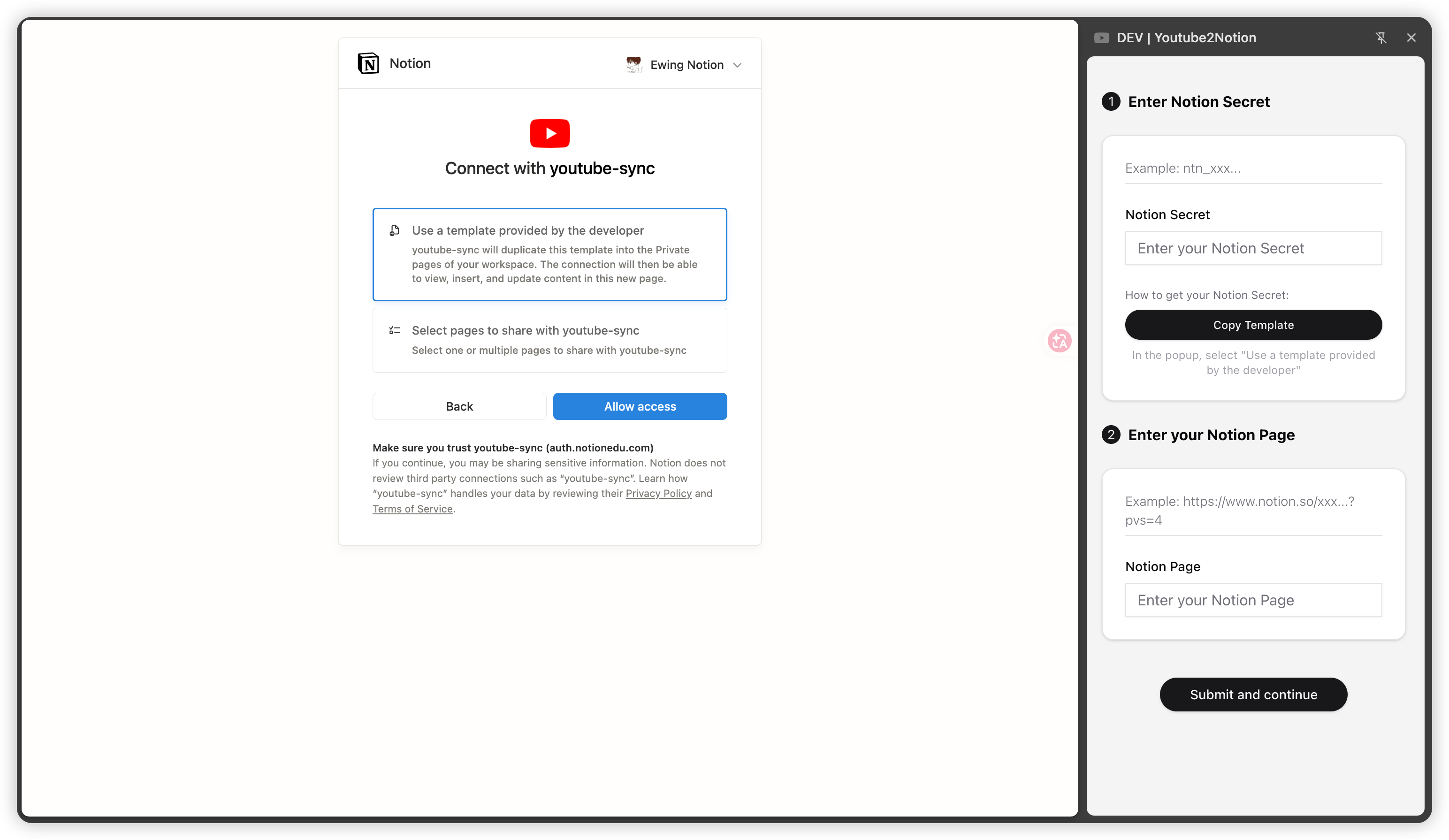
Authorize Notion and Save the Template to Your Workspace
In the "Connect with youtube-sync" window, choose the first option, "Use a template provided by the developer".
Click "Allow access" to finish. The extension automatically duplicates the official "Youtube Knowledge Base" template into your Notion workspace and gets read/write access to it. The template includes the Video, Playlists, Tag, and Notes databases — please don't rename them or change their fields.
- 4
Authorize Your YouTube Account
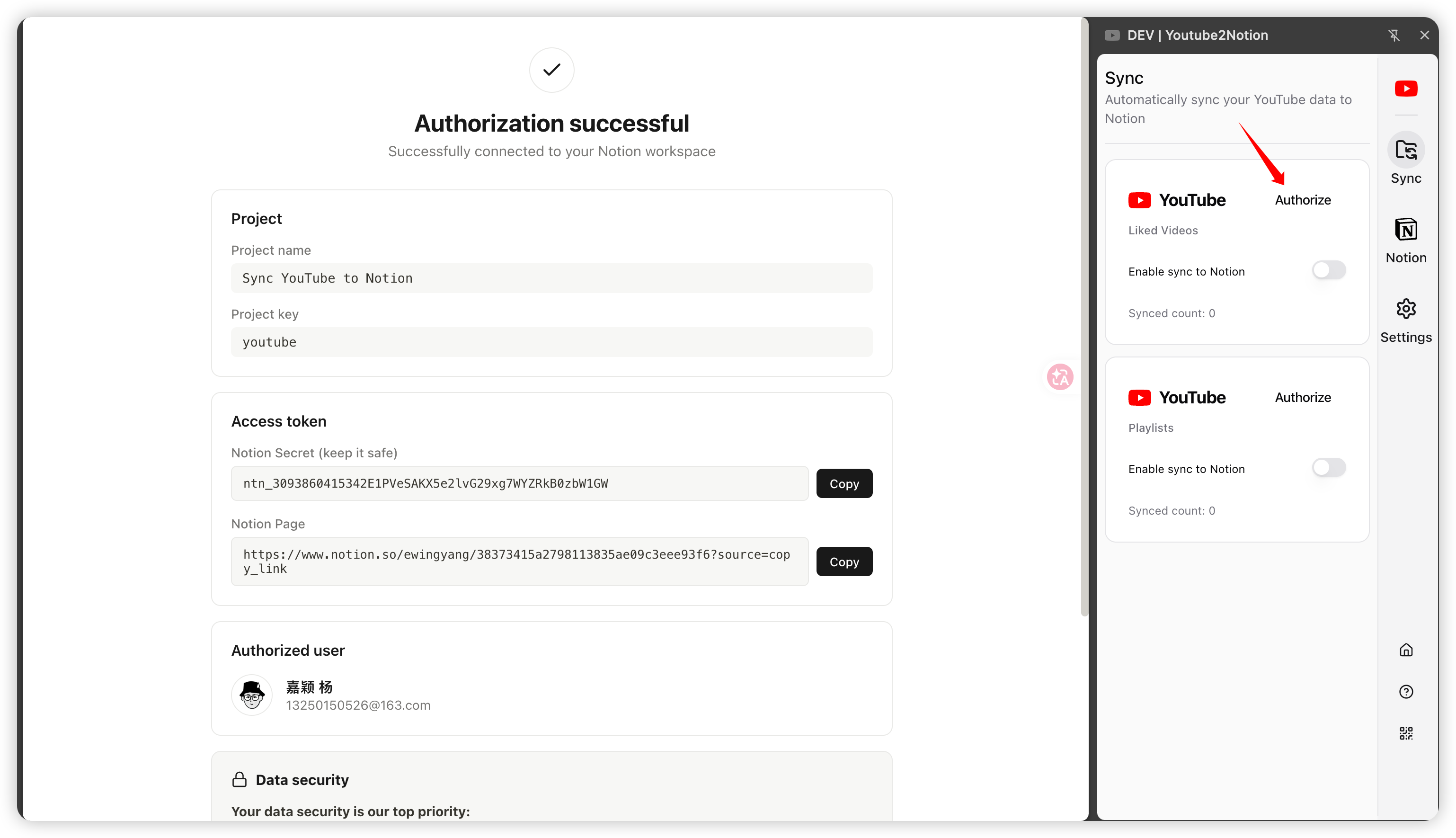
Once authorization succeeds you'll see "Authorization successful". The extension has already filled in your Notion Secret and Notion Page automatically — no copy-pasting required.
Back in the extension's "Sync" panel, click the "Authorize" button at the top-right of "Liked Videos" and "Playlists" to log in and authorize the YouTube account you want to sync.
- 5
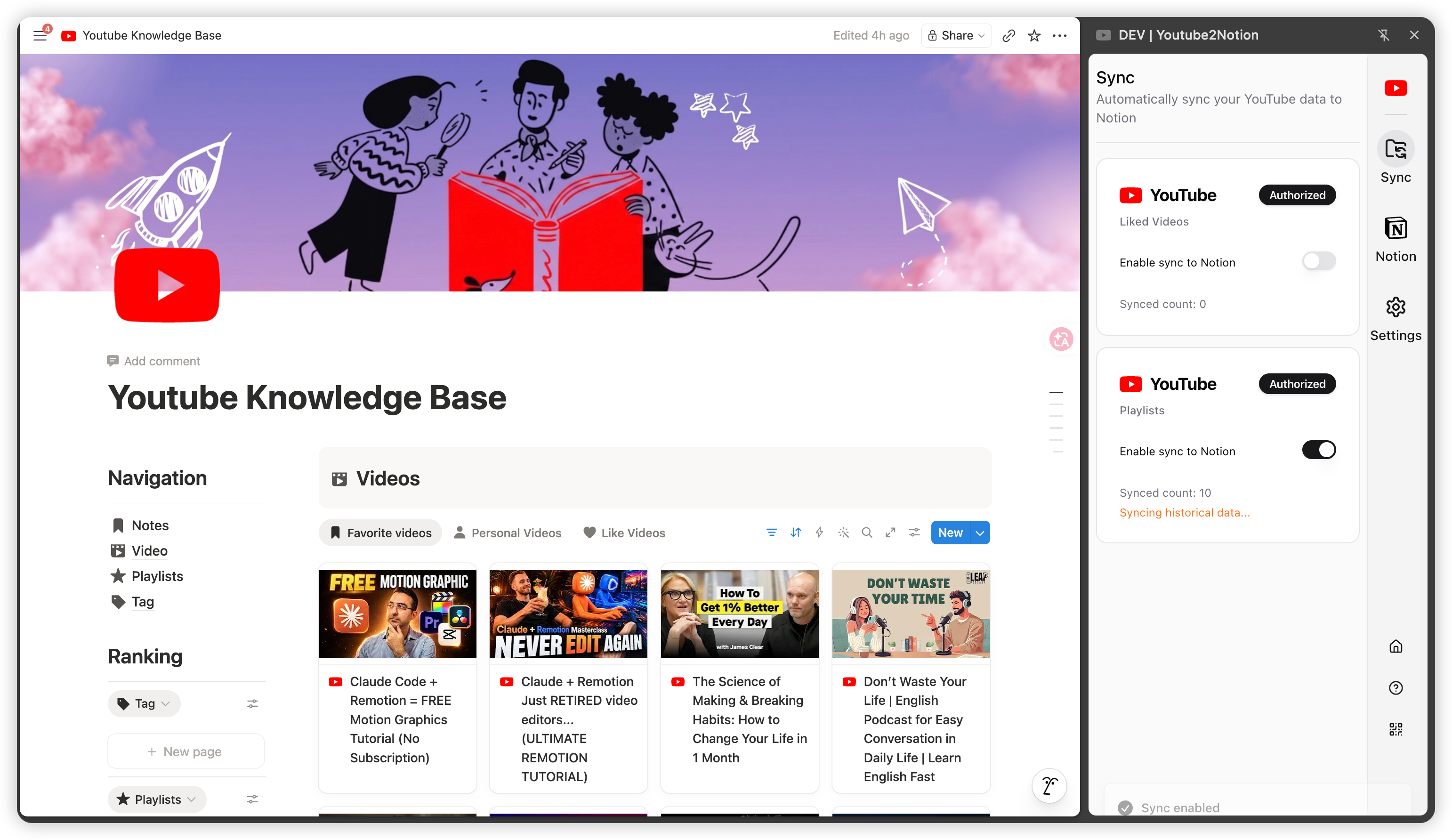
Enable Sync
Once YouTube shows "Authorized", turn on the "Enable sync to Notion" toggle. The extension starts syncing your liked videos and playlists to the "Youtube Knowledge Base" in Notion.
The first run syncs your history; after that, new items sync incrementally about every 10 minutes. You can watch the progress and content live in the Videos / Playlists databases in Notion.
- 6
(Optional) Set Up AI Summaries
AI summaries require your own LLM API (OpenAI, OpenRouter, or any OpenAI-compatible endpoint).
In the extension's "Settings", enter the API URL, key, and model name, then enable it. Summaries are generated automatically in the original language of each video and written to the matching Notion page.
- 7
Using Multiple Accounts
If you have multiple YouTube accounts, just switch accounts in your browser — the extension detects this and prioritizes syncing the current account's data.
Each account's sync progress is independent; switching back resumes from where it left off without creating duplicate entries.
Tips
- •The extension includes a free trial of 10 videos. Once you reach the limit, purchase a Lifetime auth code to unlock unlimited sync—just enter the auth code on the Notion tab.
- •Syncing runs locally in your browser. The extension never uploads your YouTube account or Notion Secret to any third-party server.
- •If sync acts up, first confirm you're logged in to YouTube and that the Notion template hasn't been altered, then check the "FAQ" on the home page for troubleshooting.
Still Have Questions?
If you still can't complete the sync after following the guide, feel free to reach out using the methods below.
Contact Us